
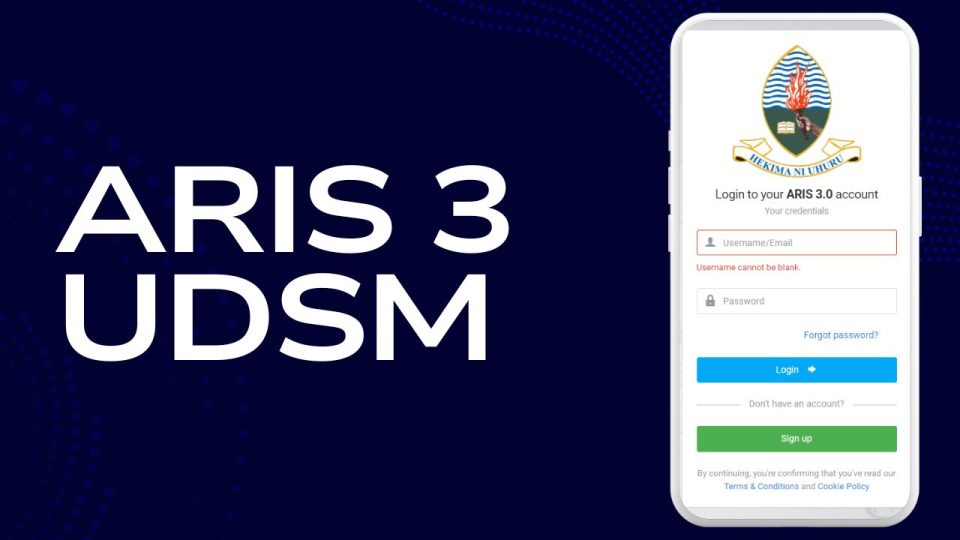
If you are a new or returning University of Dar es Salaam user, mastering the aris 3 udsm login flow saves time, prevents payment mistakes, and keeps your academic tasks on track. This guide explains what ARIS 3 is, who uses it, and exactly how to sign up, log in, recover a forgotten password, generate a control number, make mobile money or bank payments, check results, and request transcripts. You will also find fixes for common login errors and best practices for keeping your account secure.
What Is ARIS 3 at UDSM?
ARIS 3 (Academic Registration Information System) is the official self-service portal used by University of Dar es Salaam students and staff to manage key academic and financial tasks. Inside the portal you can typically:
- Register for courses and view your timetable
- Check exam results and academic progress
- View fee statements and make payments using a control number
- Update personal details like email and phone
- Request official documents such as transcripts
The aris 3 udsm login is therefore the gateway to day-to-day study administration for both undergraduate and postgraduate users.
Who Uses ARIS 3?
- Students: New and continuing students use ARIS 3 to register, view results, and pay fees.
- Staff: Academic and administrative staff use it for student management and internal tasks.
- Hybrid users: If you are both staff and student, ARIS 3 supports a single account with the ability to switch roles after verification.
Before You Start: What You Need
- A stable internet connection and a modern browser (Chrome, Firefox, Edge, or Safari).
- Your UDSM Registration Number if you are a student, in the format shown on your admission documents.
- A working email address and mobile number that you can access, because activation links and password codes are sent there.
- Time to review your details carefully during sign-up. Most profile fields are pre-filled; you should confirm they are correct before submitting.
How to Create Your ARIS 3 Account (Students)
New students typically create their ARIS 3 account once their admission data has been loaded into the system. Follow these steps:
- Open the ARIS 3 portal in your browser.
- Choose “Sign Up.”
- Select “Student Account.” A search box appears.
- Type your full Registration Number. Your name and basic details will appear if your admission data is already loaded.
- Select your record. The form auto-fills your name, email, and phone.
- Verify your details. Make sure your email and phone are correct and active.
- Set your username and password. For students, the username is typically your Registration Number.
- Accept the terms of service and submit your registration.
- Activate your account from your email. Check your inbox for an activation link. Click it to finalize your account.
- Return to the ARIS 3 login page and sign in with your new credentials.
Important: If you cannot find your name during step 4, your admission data may not yet be loaded or an account may already exist. In that case, contact the ARIS office or your college coordinator for assistance.
How to Create Your ARIS 3 Account (Staff)
- Open the portal and choose “Sign Up.”
- Select “Staff Account.”
- Start typing your name in the staff search field and pick the correct record from the suggestions.
- Verify the auto-filled details, especially your email and phone.
- Choose a username (often your email ID before the “@”).
- Set a strong password and accept the terms of service.
- Activate your account from the email you receive, then log in.
Hybrid users first complete the staff account setup, then contact the ARIS coordinators to enable role-switching.
ARIS 3 UDSM Login: Step-by-Step
Once your account is active:
- Open the portal and go to the Student or Staff login form.
- Enter your username and password exactly as created.
- Click “Login.”
- If prompted, update any missing profile fields (email or phone) so you do not miss alerts.
- Explore the left-hand menu to find key areas such as Course Registration, Course Results, My Payments, Bank Information, My Accommodation, and more.
Tip: If you see an error stating your credentials are incorrect, confirm Caps Lock is off and that you are using your current password. If you still cannot sign in, follow the password recovery steps below.
Forgotten Password? ARIS 3 Password Recovery
ARIS 3 includes a built-in, email-based recovery flow:
- On the login page, click “Forgot Password?”
- Enter your registered email and phone on the verification step and submit.
- Check your email for a four-digit code and enter it in the confirmation step.
- Create a new password and confirm it on the reset screen.
- You will see a success message. Go back to the login form and sign in with the new password.
If recovery fails because your email or phone number is outdated, you will need help from your ARIS coordinator to update your contact details on file.
Making Payments in ARIS 3: Control Number, Mobile Money, and Bank
ARIS uses control numbers for secure, traceable fee payments. Here is the correct, tested flow that keeps your aris 3 udsm login and billing in sync:
Generate Your Control Number
- Log in to ARIS 3.
- Open “My Payments.”
- Click “Create New Payment.”
- Select the items you want to pay for (tuition, accommodation, transcripts, graduation fees, etc.) and enter the amount where required.
- Click “Save & Request Control Number.”
- Wait a few seconds for the system to generate the control number. Do not create another payment request while waiting.
Your control number appears in the payments table. Use it for a single payment of the exact amount you selected.
Pay at the Bank
Bring your control number and amount to any supported bank counter and complete the payment.
Pay with Mobile Money (Tanzania)
Payments can be made with the major mobile money services. The typical flow uses the business number 888999 and your control number as the reference:
- M-Pesa (Vodacom): Dial
*150*00#→ Lipa kwa M-Pesa → Weka namba ya kampuni → Business number: 888999 → Reference: your control number → enter amount and confirm. - Tigo Pesa: Dial
*150*01#→ Lipa Bili / Pay Bill → Weka namba ya kampuni → Business number: 888999 → Reference: your control number → amount and confirm. - Airtel Money: Dial
*150*60#→ Lipia bili → Weka namba ya kampuni → Business number: 888999 → Reference: your control number → amount and confirm.
Confirming Your Payment
Once payment is received, ARIS updates your My Payments status automatically and you should receive an SMS receipt. If you typed the wrong amount, you can cancel the bill and request a new control number, then pay again correctly.
What You Can Do After Login
After a successful aris 3 udsm login, these are the most used features and where to find them:
Course Registration
- Use Course Registration to enroll for the semester.
- Confirm units, prerequisites, and any programme rules before finalizing.
- Save and verify your registration status to ensure you are set for assessments.
Results and Progress
- Open Course Results to view grade entries as they are published.
- Track your CGPA and outstanding requirements so you can plan timely remedial actions if needed.
Payments and Statements
- My Payments shows pending items, generated control numbers, and posted receipts.
- Bank Information may provide banking details where applicable.
Accommodation
- My Accommodation appears for students in eligible campuses or colleges. Check availability guidelines in your joining instructions if you plan to apply.
Transcript Requests
- Use Academic → My Transcript Requests to initiate a request.
- Submit your details, receive a control number, make the payment, and follow the instructions to submit any required forms or attachments.
Smart Troubleshooting for ARIS 3 Login Problems
Even when you follow every step, small issues can block access. Start with these quick solutions:
“User not found” during Sign-Up
- Re-check your Registration Number format.
- If you are newly admitted, your record may not yet be loaded. Wait for the official load window or contact your ARIS coordinator to confirm status.
“Incorrect username or password”
- Make sure Caps Lock is off and there are no leading/trailing spaces.
- If you recently changed your password, clear the saved password and retype it manually.
- Use the Forgot Password flow if you still cannot log in.
Page does not load or keeps asking for cookies
- Switch to a modern browser and enable cookies and JavaScript.
- Clear your browser cache and cookies for the ARIS domain, then reload.
- Try a different device or network to rule out connectivity issues.
Payment shows “Pending” after you paid
- Allow the system a short window to post your receipt automatically.
- Verify the exact control number and amount used in mobile money or bank slips.
- If still pending after a reasonable time, reach out to the Finance/ARIS office with your control number and transaction confirmation.
You changed phone or email and now cannot recover password
- Contact your college ARIS coordinator to update your registered contacts.
- Once updated, repeat the Forgot Password steps.
Best Practices for a Smooth ARIS 3 Experience
- Keep your contacts current. Update email and phone in your profile so you always receive activation links and codes.
- Use strong passwords and avoid sharing credentials.
- Log out from shared devices, including campus labs.
- Download or screenshot your control number before you leave the payment screen.
- Reconcile payments regularly in My Payments to ensure your account is clear ahead of registration or exams.
- Read college notices in your joining instructions and official channels for any semester-specific processes.
Quick Reference: The aris 3 udsm login Flow
- Create your account via Sign Up (Student or Staff).
- Activate the account from your email.
- Log in with your username and password.
- Use My Payments to generate a control number and pay via mobile money or bank.
- Check Course Registration, Course Results, and Academic menus for your core tasks.
- Use Forgot Password if you need to reset access.
FAQ: ARIS 3 UDSM Login and Portal Use
1) Is ARIS 3 different from the admissions portal?
Yes. The admissions portal is used to apply for programmes and track application status. ARIS 3 is your day-to-day academic and financial portal after admission and registration.
2) My name does not appear during student sign-up. What should I do?
First, confirm your Registration Number format exactly as on your documents. If it still does not appear, your data may not yet be loaded or an account may already exist. Contact your ARIS coordinator for help.
3) How long do fee payments take to reflect in ARIS 3?
Most mobile money and bank payments post automatically after completion. If your status remains pending, verify the control number and amount. Then contact Finance/ARIS support with your proof of payment.
4) Which business number do I use for mobile money payments?
When paying against a generated control number, you typically use 888999 as the business number, with your control number as the payment reference. Always match the exact amount shown in ARIS.
5) Can I access ARIS 3 on my phone?
Yes. A modern mobile browser works. Ensure cookies and JavaScript are enabled. For heavy tasks, a laptop or desktop often provides a smoother experience.
6) I forgot my password and I no longer use the email on file. What now?
Your password reset code is sent to the registered email. Ask your college ARIS coordinator to update your contacts, then complete the reset process again.
7) How do I request an official transcript?
Log in, go to Academic → My Transcript Requests, submit the request, receive a control number, pay, then follow the instructions to submit any required forms or attachments as indicated for your college.
